Expiring Links: How to Set Automatic Time Limits on Your Short Links
Your festive Diwali sale ends at midnight on Sunday.
Your customer verification or password reset link is valid for 15 minutes.
Your early-bird conference tickets close at 5:00 PM on Friday.
Yet long after those promotions and windows close, the links sent out across SMS, WhatsApp, social posts, and email newsletters keep circulating. Customers search their message inboxes days later, tap a link promising 50% off, and land on an invalid checkout page or an expired cart. Frustrated shoppers contact support, or worse, abandon your brand entirely.
Even worse are transactional links: account verification tokens, password resets, and loan approval links that sit dormant in chat histories. If left active indefinitely, they present avoidable security vulnerabilities.
Expiring links eliminate this problem. By attaching an automatic expiration timestamp to your branded short links, they stay active while your campaign runs and instantly deactivate the second your deadline passes—with zero manual intervention.
What is an expiring link?
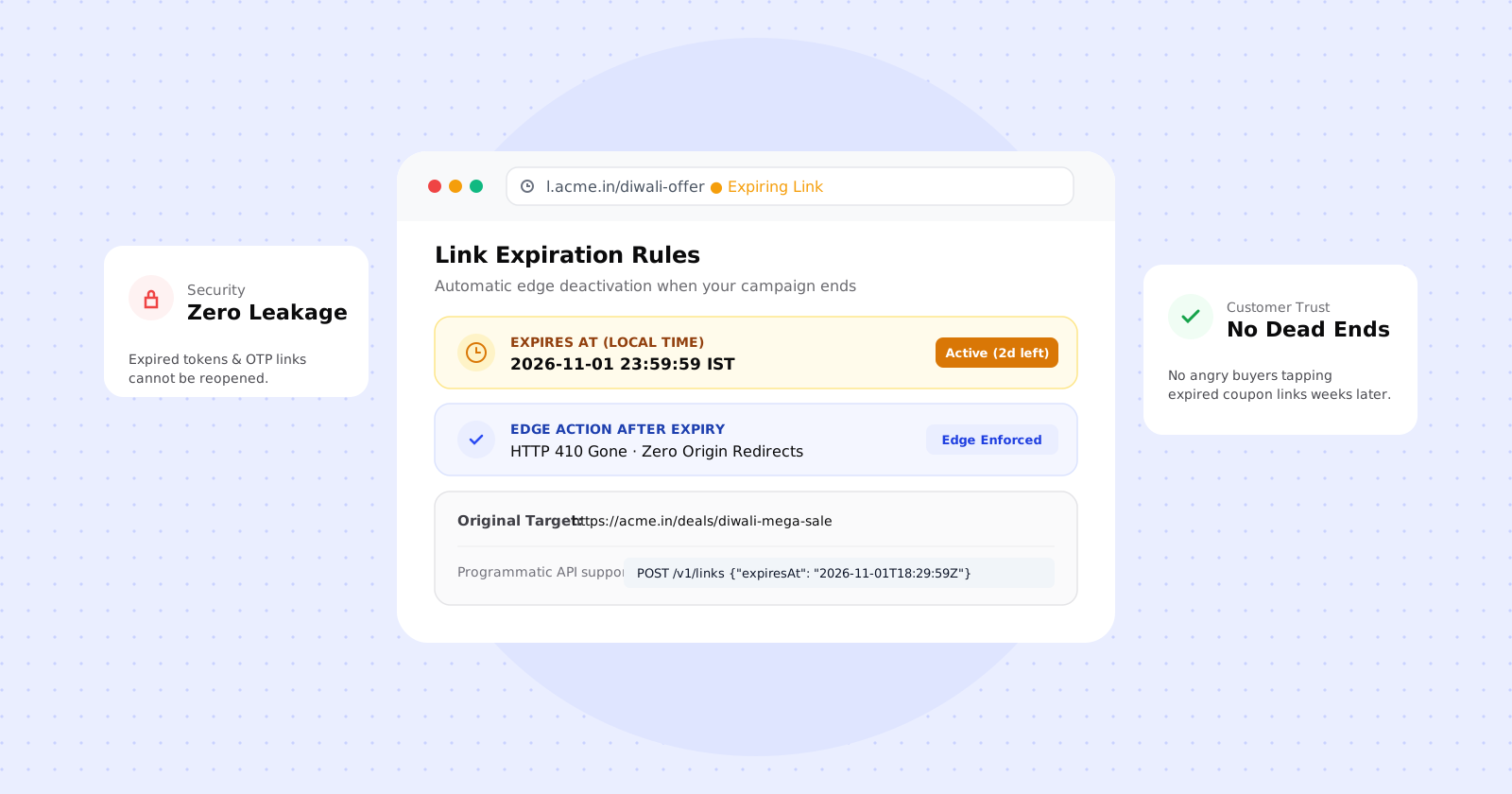
An expiring link is a short link configured with a specific end date and time (expiresAt).
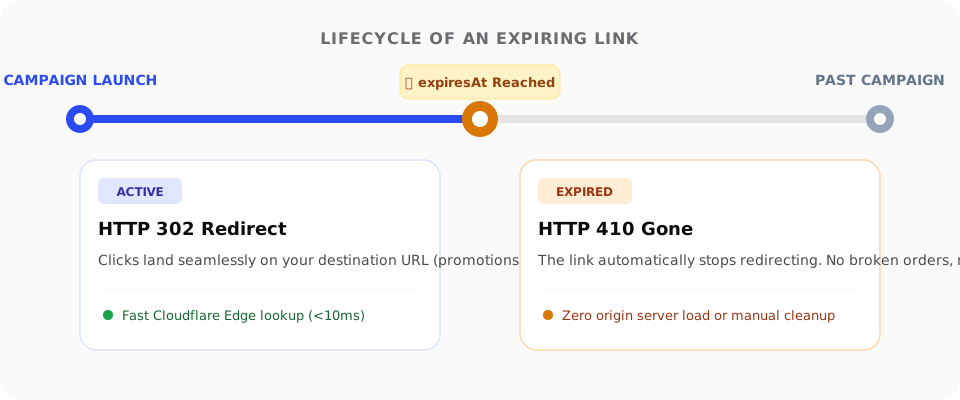
Until that moment arrives, it works like any standard branded link: it resolves in milliseconds at the edge, routes visitors by device or geography, and records analytics.
The moment the clock ticks past your designated deadline, the redirect engine automatically deactivates the route. Instead of forwarding traffic to an outdated landing page, it returns a clean HTTP 410 Gone status.
Why standard links cause problems after campaigns end
Leaving campaign links active indefinitely creates three common headaches for growth and engineering teams:
1. Damaged customer trust
When someone taps a link from an SMS or WhatsApp message sent two weeks ago, they expect either the promised offer or a clear explanation that the campaign has ended. Dropping them on a broken checkout, an empty category page, or an unfulfilled coupon code erodes credibility.
2. Security and compliance risks
Transactional messages often contain links tied to single-use workflows: KYC verification, delivery address updates, or password resets. If a link never expires, anyone with access to the forwarded message or device months later can trigger the underlying token or session state.
3. Cluttered link catalogs
High-volume teams sending hundreds of promotional campaigns every month end up with bloated dashboards filled with stale URLs. Trying to remember which link corresponds to last month’s flash sale turns into a time sink. Automatic expiration keeps your link inventory clean by design.
4 common use cases for expiring links
1. Flash sales & seasonal promotions
Whether you run a 24-hour flash sale or a week-long festive promotion, expiring links guarantee that promotional URLs stop redirecting the exact moment the sale shuts down.
2. Time-sensitive business SMS & WhatsApp campaigns
In India, commercial SMS and WhatsApp messages have long shelf lives. Unlike push notifications that disappear after being dismissed, text messages stay saved in messaging threads indefinitely.
Carrier delays can also cause SMS batches to deliver minutes or hours after dispatch. Setting an explicit expiration rule prevents old messages from driving invalid traffic weeks down the road.
3. Event ticketing and webinar registrations
When webinar signups or early-bird conference registrations close, keeping the link open causes customer confusion. Expiring links ensure you don’t take registrations for a room that is already full.
4. Ephemeral content & beta access
Limited-seat beta releases, press embargo materials, or private preview links for creators can be set to self-destruct after the review period closes.
How link expiration works in clkr.in
clkr.in handles link expiration natively at both the dashboard and API levels.
1. Setting expiration in the dashboard
When creating or editing any link in your clkr.in workspace:
- Open the Link Editor.
- Under the Expires at field, select your target date and time using your local time zone.
- Save the link.

Your links table immediately flags active expiring links with their scheduled cutoff. If your sale gets extended, you can update or clear the expiration date in seconds without changing the short URL your customers have.
2. Automated expiration via the API
For teams generating thousands of individualized links via CRM workflows or automated SMS engines, pass the expiresAt property (an ISO 8601 timestamp in UTC) directly to the v1 API:
curl -X POST https://api.getclkr.com/v1/links \
  -H "Authorization: Bearer clkr_your_api_key" \
  -H "Content-Type: application/json" \
  -d '{
    "url": "https://yourbrand.in/offers/diwali-special",
    "domain": "l.yourbrand.in",
    "slug": "diwali-flash",
    "expiresAt": "2026-11-01T18:29:59Z"
  }'
Every link generated by your script inherits the exact lifecycle you specify, with zero post-campaign cleanup required.
3. Under the hood: Why HTTP 410 at the edge matters
Most link management tools either delete the link record entirely (which returns a generic 404 Not Found) or require an origin server to evaluate database queries on every click.
clkr.in takes a faster, cleaner approach:
- Evaluated at Cloudflare’s Edge: Expiration checks happen in our lightweight redirect Worker across Cloudflare’s global edge network. Responses take under 10 milliseconds and never hit an origin database.
- HTTP 410 Gone vs. 404 Not Found: In the HTTP specification,
404 Not Foundimplies a URL may just be missing or mistyped.410 Goneexplicitly tells browsers, bots, and crawlers that the resource previously existed and was intentionally removed. This signals search engines to immediately de-index the URL and stop crawling it. - Privacy protection: When a link expires, the redirect engine never reveals the destination URL it once pointed to.
When to expire a link vs. when to change its destination
Automatic expiration is powerful, but it isn’t always the right choice. Consider how valuable the link itself is before deciding:
| Strategy | When to use it | How it works |
|---|---|---|
| Set an Expiration Date | One-off coupon codes, sensitive verification links, webinars, flash deals. | Automatically stops redirecting and serves an edge 410 Gone. |
| Update the Destination URL | Reusable seasonal links (e.g. l.brand.in/sale), main social bio links, QR codes printed on physical packaging. |
The short URL stays active forever, but you change where it lands (e.g., from the Diwali sale to the general homepage). |
Rule of thumb: If a short link is printed on physical paper, flyers, or packaging, never expire it. Keep the link alive and update its destination when the campaign shifts. If the link is sent over digital channels with a hard deadline, set an expiration date.
3 best practices for expiring links
1. Account for SMS carrier delivery lag
While most SMS messages arrive within seconds, network congestion during festive seasons or peak hours can delay message delivery by 30 to 90 minutes.
If your sale officially ends at 11:59 PM, consider setting your link expiration buffer to 2:00 AM or 3:00 AM. This ensures buyers whose messages were delayed by telecom operators aren’t greeted with a dead link while reading their phone late at night.
2. Always double-check time zones
If your marketing team operates in IST (UTC+5:30) and your developers configure automated cron jobs in UTC, a mismatch can accidentally expire your links 5.5 hours early. Always ensure your API payloads explicitly supply the UTC offset (e.g., 2026-11-01T18:29:59Z or 2026-11-01T23:59:59+05:30).
3. Extend before it expires if your campaign runs long
If a flash sale gets extended due to popular demand, you don’t need to generate a new short URL. Simply open the link in your clkr.in dashboard, edit the expiresAt date, and save. The new deadline propagates instantly across all edge nodes.
Start sending cleaner, safer links
Links should work for you, not create post-campaign cleanup tasks. By incorporating expiring links into your marketing stack, you protect your customer experience, keep your analytics pristine, and ensure time-limited offers stay truly time-limited.
Log into your clkr.in dashboard to set up your first expiring link, or review our Public API Documentation to build automated expiration into your customer messaging pipeline.